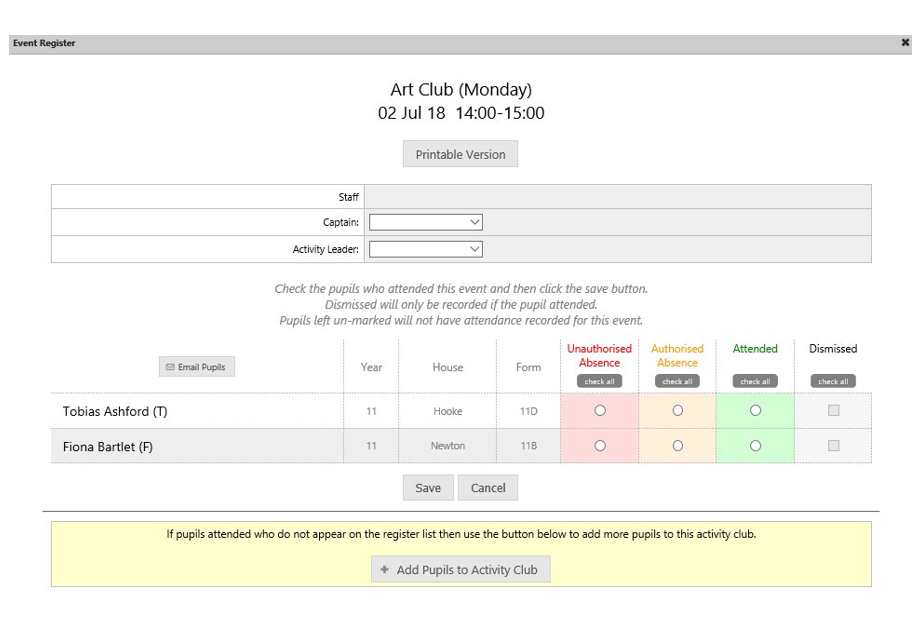
Once you have built the rules, scheduled events and added pupils and staff to a club, you can start to use the daily calendar and begin to take registers.
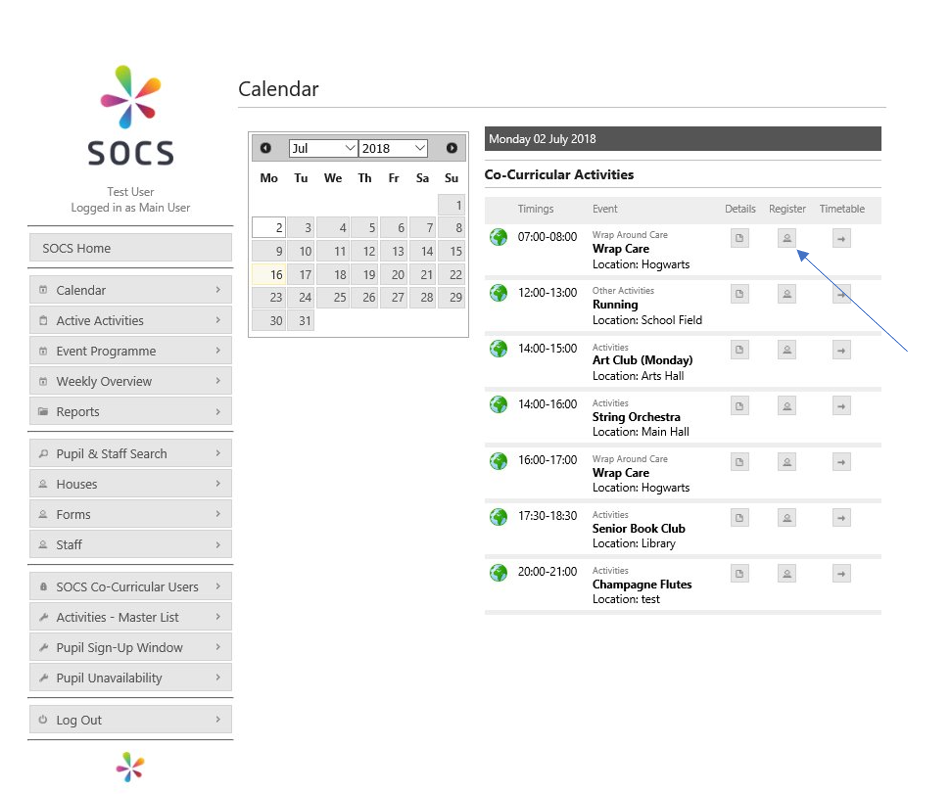
When you login to SOCS Co-Curricular you will see that the day view lists the activities happening that day, and from there you can quickly take the register, view activity details and the timetable.
When you visit SOCS Co-Curricular on a mobile phone you will be taken to the Mobile Web App. The Mobile Web App is specifically designed for phone users and the small screens. You can save the Mobile Web App as an icon to your mobile device's home screen for ease and it will operate and behave like a mobile app. This means that staff can easily take registers on their phones.
Was this article helpful?
That’s Great!
Thank you for your feedback
Sorry! We couldn't be helpful
Thank you for your feedback
Feedback sent
We appreciate your effort and will try to fix the article