Option 1
- Login to SOCS Co-curricular
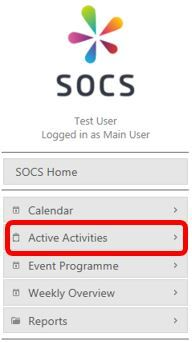
- Select Active Activities from the left-hand menu (see screenshot below):
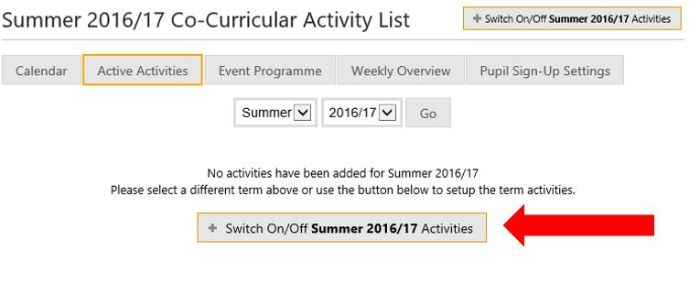
- Using the drop-down menu, set the term to the term you are setting up and click Go.
- Click the + Switch On/Off “selected term” Activities button (see red arrow on the screenshot below):
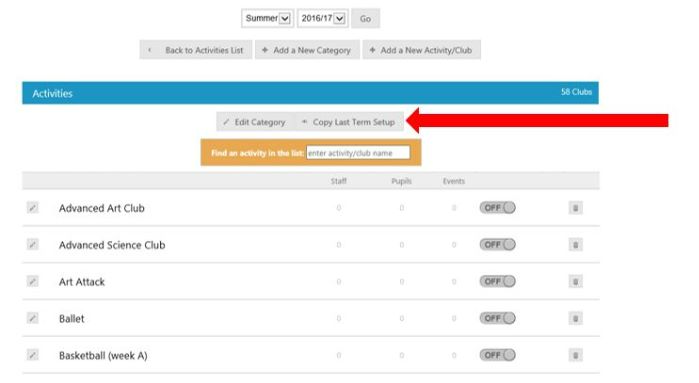
- Click on a category to expand it and see the activities within the category.
- Select the Copy Last Term Setup Button (see screenshot below).
- This allows you to copy the setup for this category from last term and it will switch on all activity clubs which were switched on last term. This is a great time saver and any activity clubs which are already switched on for this category will not be affected by this.
- You can copy the last term’s Activity Club Pupils and Activity Club Staff using the tick boxes You will see the following reminder before copying the last term’ setup (see screenshot below):
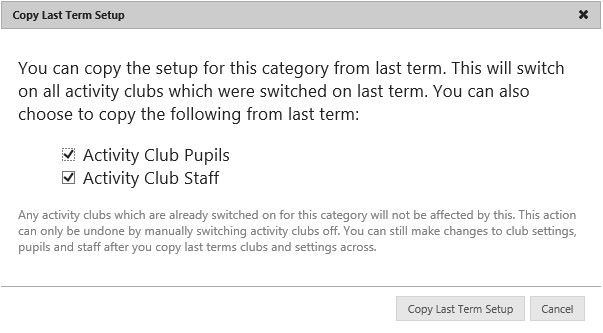
Note: This action can only be undone by manually switching activity clubs off. You can still make changes to club settings, pupils and staff after you copy last terms clubs and settings across.
- Once the Copy Last Term Setup button has been selected, any staff and pupils that were assigned to the activities last term, will automatically be rolled over for the next term.
- You can also choose to “add the schedule from last term” (see screenshot below):
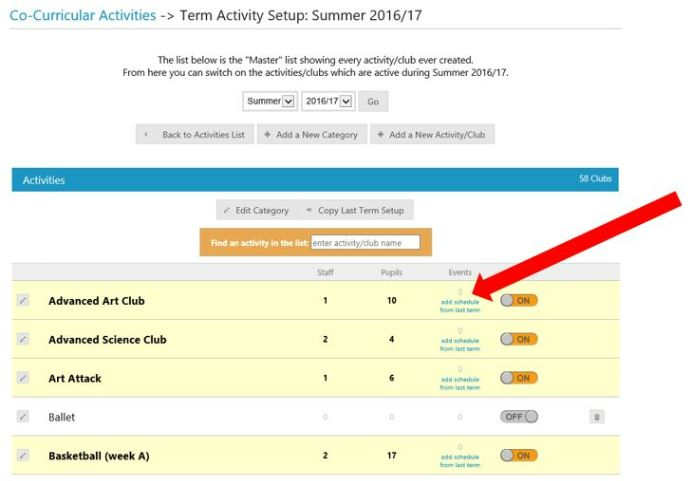
- If “add the schedule from last term” is selected, you will see the event schedule from last term.This gives you an opportunity to check that the details will remain the same for the new term.
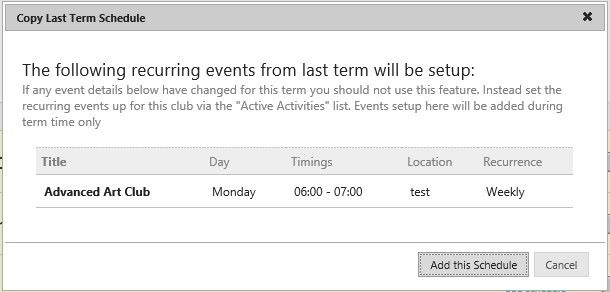
Note: If any event details have changed for the new term then you should not use this feature. Instead set the recurring events up for this club via the "Active Activities" list.
Was this article helpful?
That’s Great!
Thank you for your feedback
Sorry! We couldn't be helpful
Thank you for your feedback
Feedback sent
We appreciate your effort and will try to fix the article