Adding events and timetables for activities can be done centrally by one of two members of staff or (recommended) by the staff member leading the activity, club or society.
Once staff members have access to SOCS, they can login and set up the timetables and events for the clubs which they are in charge of.
To setup a timetable for an activity club follow these steps:
Step 1:
Login to SOCS Co-curricular
Step 2:
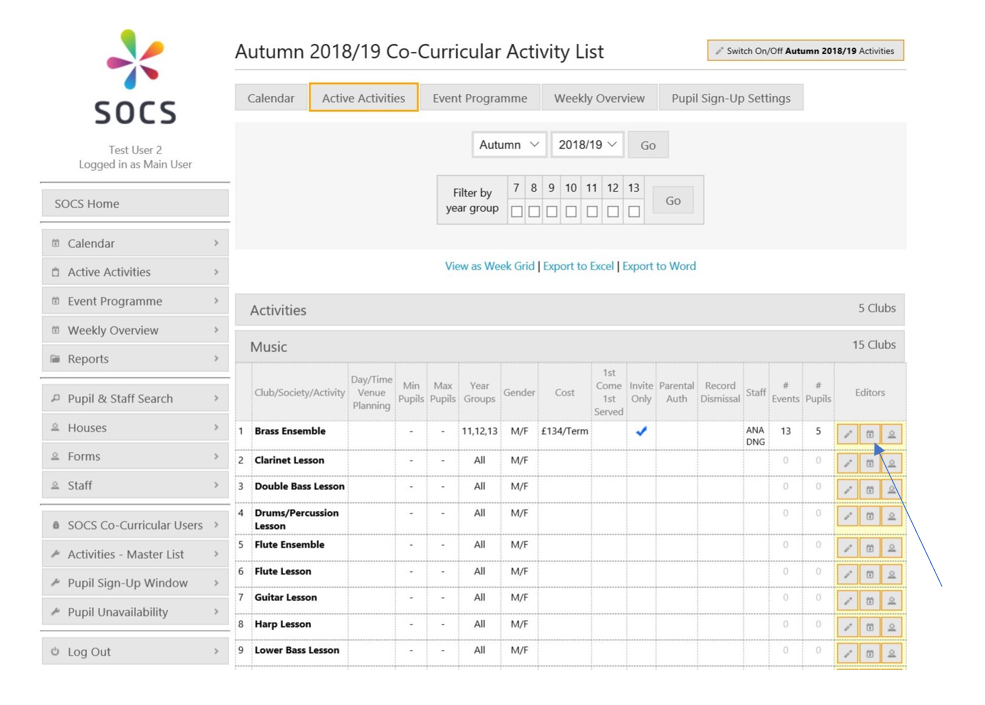
Click on Active Activities in the left-hand menu.
Step 3:
Select the appropriate Category.
Step 4:
Click on the “Edit timetable and events” button for an activity club.
Step 5:
Use the buttons at the top to add single or recurring events.
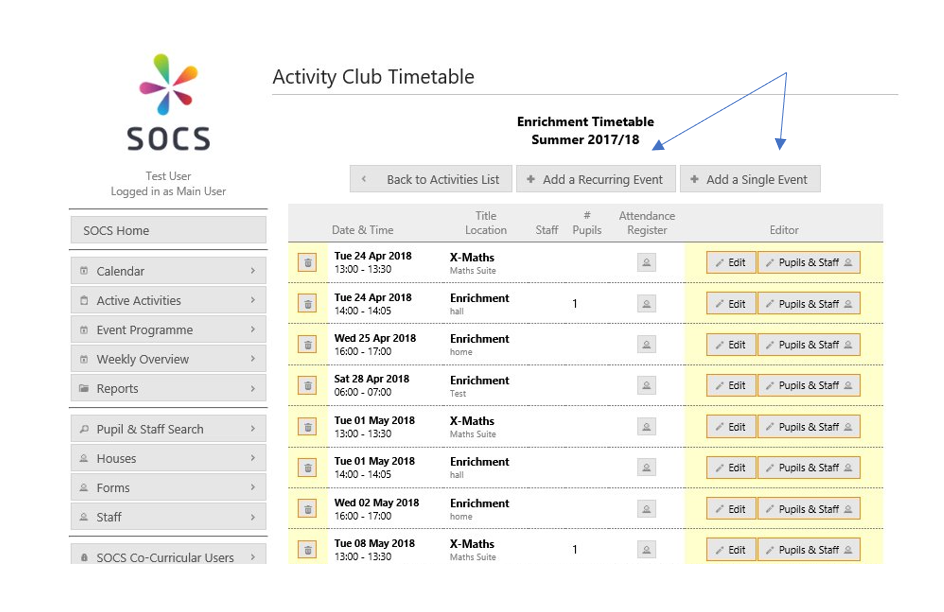
You can then add the event details, recurrence pattern and recurrence date range. If you choose “Weekly,” the activity will occur every week on the days you have selected. If the activity occurs every other week on a Monday for example, you will need to use the “Bi-Weekly” option instead and tick ‘Monday.’
The term dates you have added (via SOCS Administrator) allows activities to be scheduled in term time only and will automatically skip half terms. If you would prefer for activities to be scheduled during half term, untick the ‘Term time only' option. You can change the recurrence date range if you would prefer activities to start earlier or end later.
Was this article helpful?
That’s Great!
Thank you for your feedback
Sorry! We couldn't be helpful
Thank you for your feedback
Feedback sent
We appreciate your effort and will try to fix the article