SOCS Facilities now supports recurring bookings, letting you set up a repeat Ad Hoc event - complete with bookings for Room and/or Resources (e.g. equipment, catering and transport) - in one go, up to 12 months ahead.
Before you start: what's already booked for you?
Anything already in SOCS with a room attached - your MIS timetable, Sport, Co-curricular, Music + Tuition and Calendar events - will automatically block that room in the Facilities module. You don't need to re-book these. If a room looks free when it shouldn't be, the usual culprit is an old free text venue entry (e.g. someone typed "IT Suite 2" rather than selecting it from your Rooms & Locations list, which means the event isn't allocated to the actual room in your SOCS Facilities list of Rooms & Locations).
Creating a recurring booking
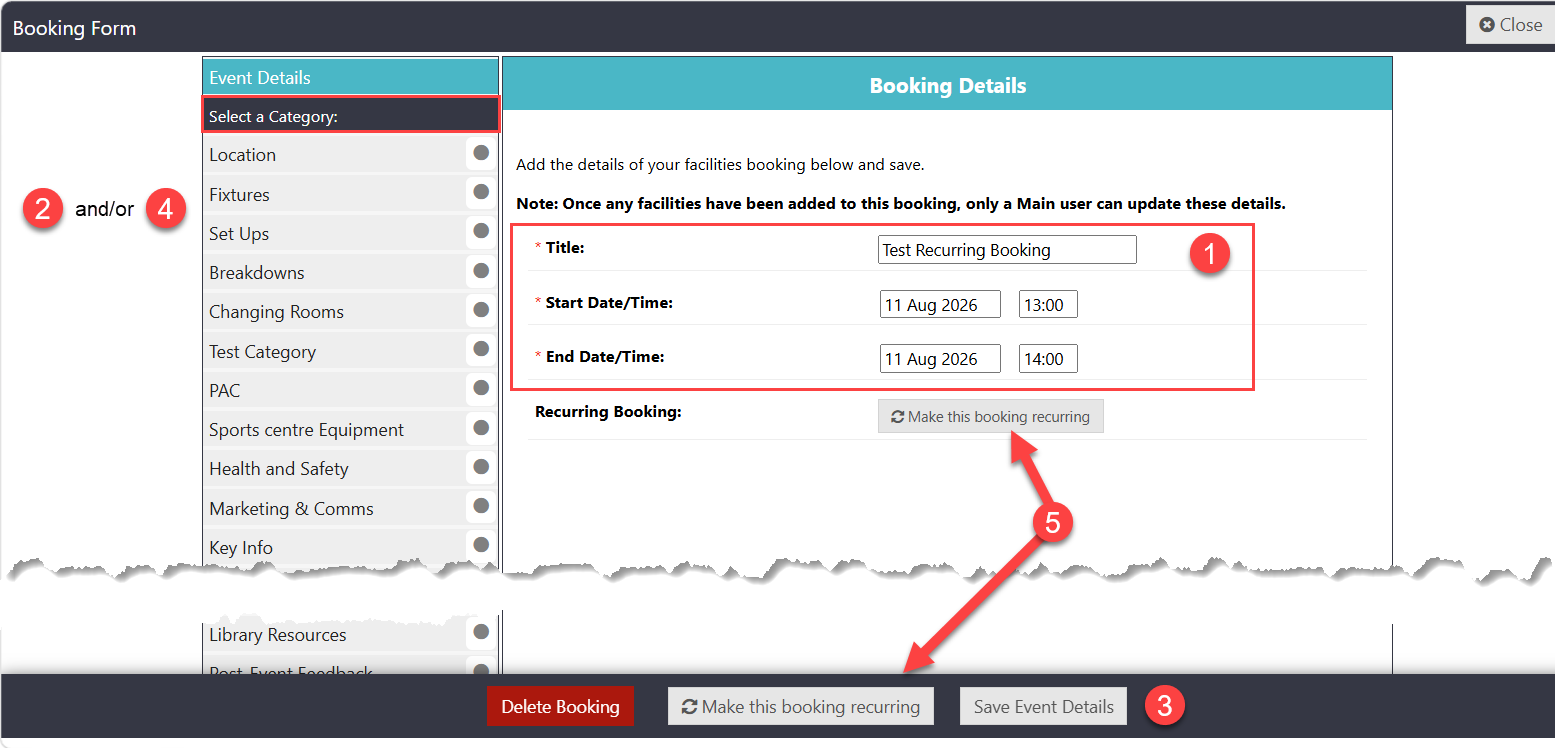
1. + Add an Ad hoc Booking. Give it a title, then set the date and time of a single occurrence - for example, Monday 12:00-12:25. Do not stretch the dates across the whole term ... entering a long date range here creates one very long event, not a repeating one.
2. Select the Location (if required). Choose the room from the Location option in the menu:
Tip: the Location Availability view shows the whole school for a given day, so you can see what's free before you commit to a room and book from here too.
3. Save the location and make it recurring - or if you need to add resources, don't make it recurring yet.
4. Add any resources from a Category. Work through the list of categories selecting anything relevant e.g. AV & IT equipment, catering, transport (the categories are bespoke to your school's setup) - answering the questions and submitting each request (e.g. 10 iPads and Minibus 1).
5. Click Make this booking recurring. Now set the recurrence span - up to 12 months into the future. You can also add extra days at this point (e.g. make a Monday booking repeat on Mondays and Wednesdays).
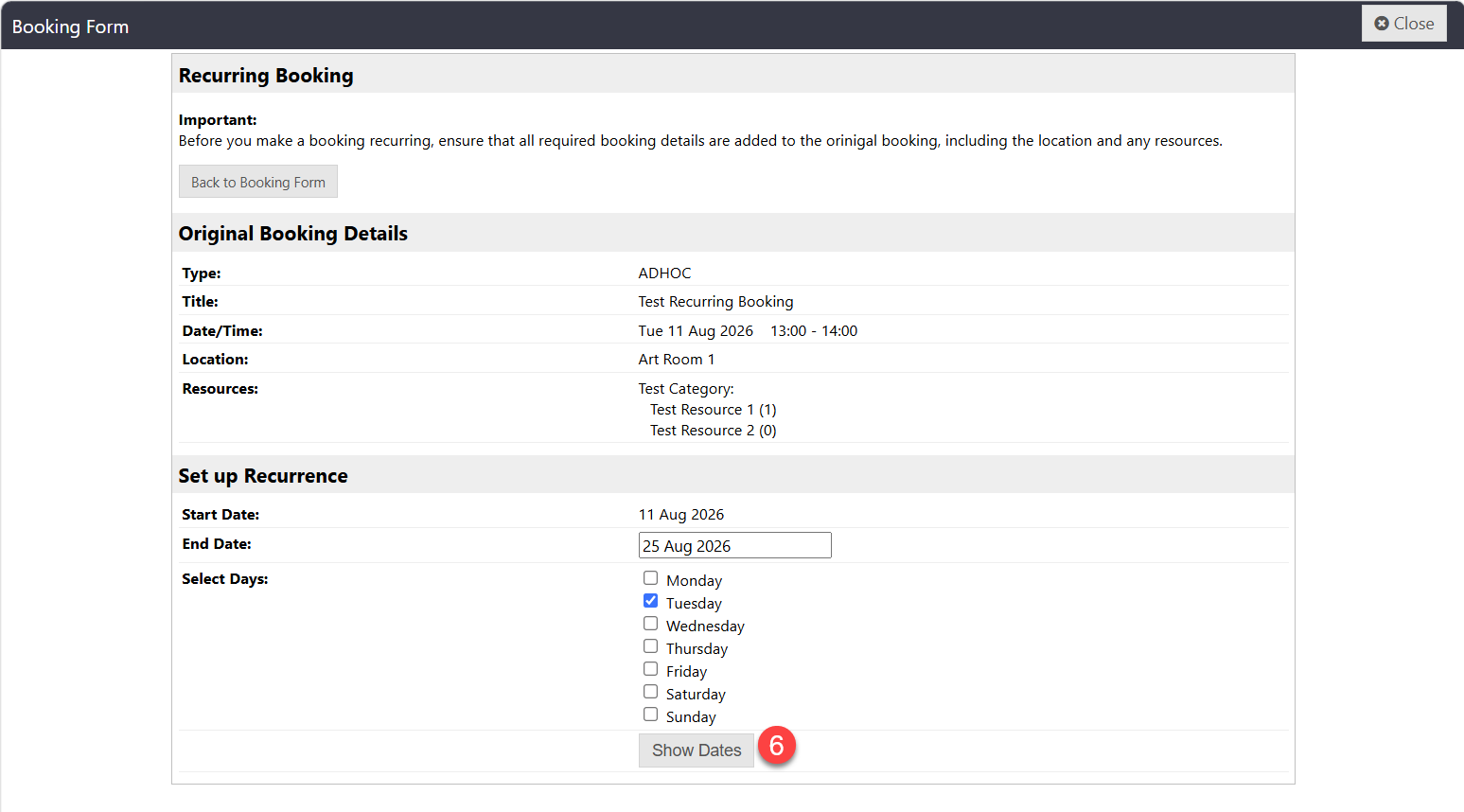
6. Click Show Dates and review. Every occurrence in the span is listed and ticked. Untick any dates you don't need - for example, alternate weeks on a two-week timetable, half terms or exam weeks.
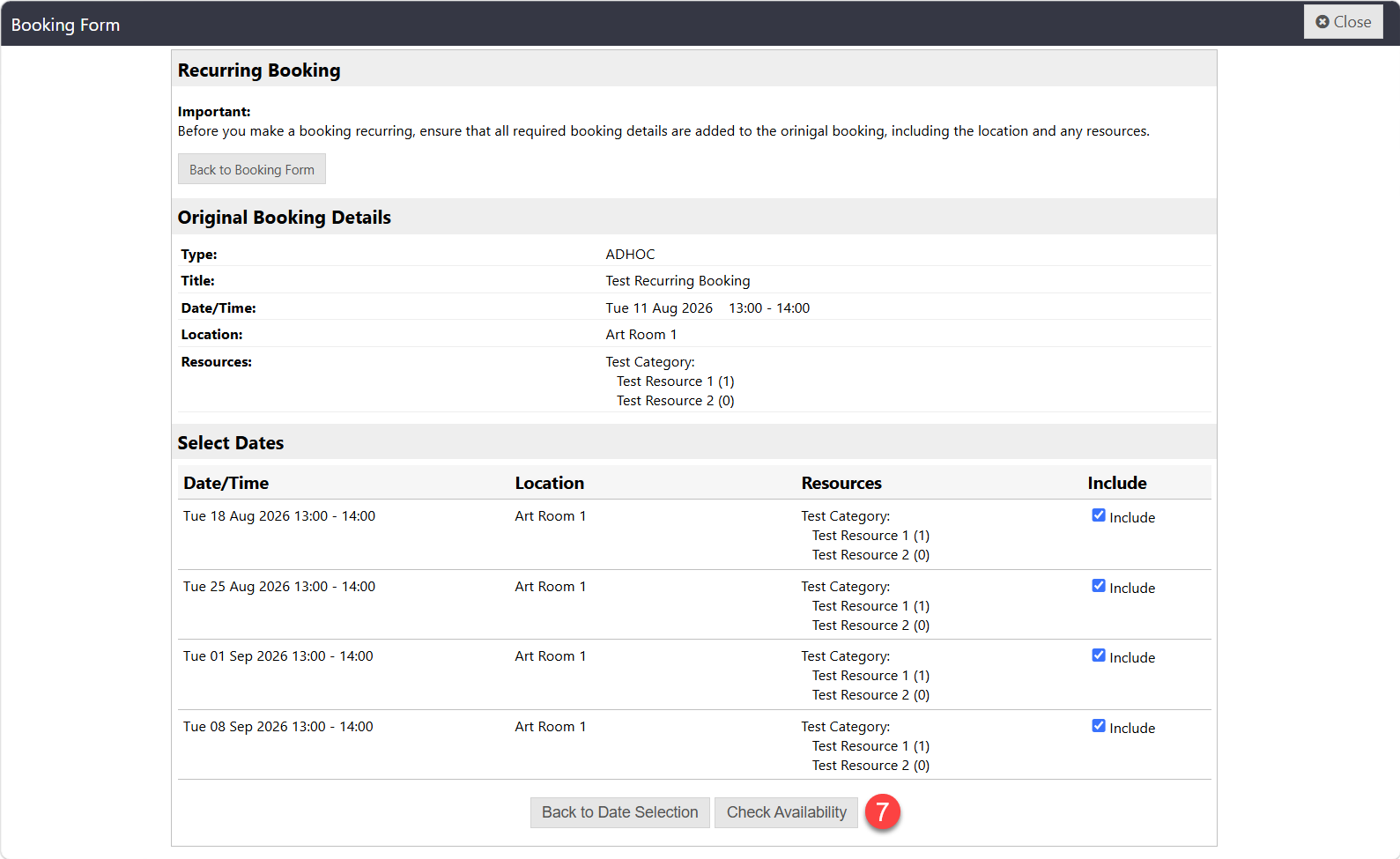
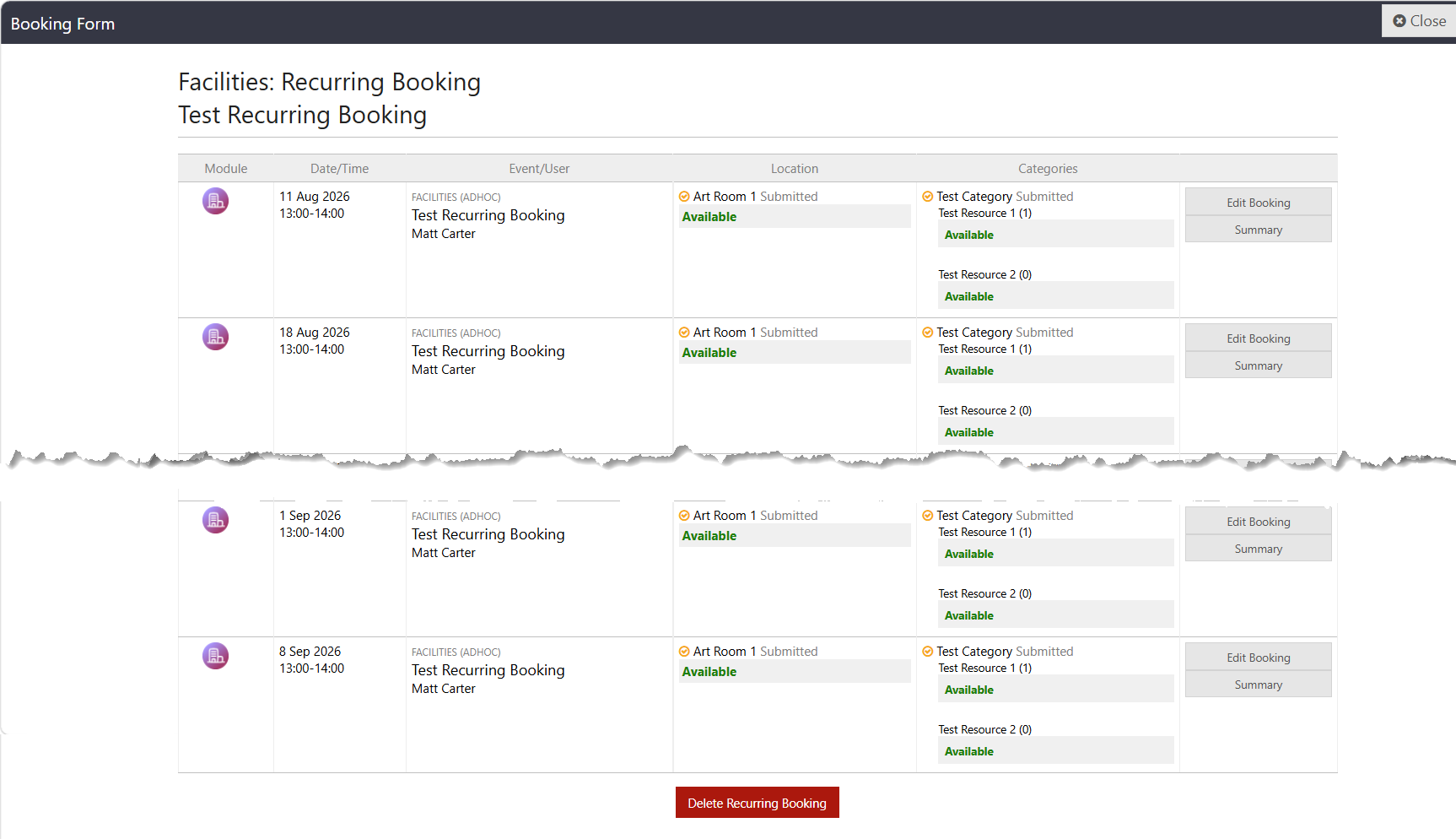
7. Check Availability. The next screen shows every component - room, equipment, transport - against every date, and whether each is available. Untick anything that isn't available, then submit. It's worth noting down any occurrences you had to untick so you can arrange alternatives.
Approvals
When you submit, the approver receives one email for the whole recurring series, not one per occurrence. If a booking has several components (say a room, iPads and a minibus), each approver responsible for a component gets their own email.
Approvers have full flexibility: they can approve a single occurrence of a single component, all occurrences of one component, or everything at once. Your "My Bookings" page shows the live status of each component:
Saved
Submitted
Amendments Required
Approved
Declined
Main users see a status bar when creating a booking and can approve their own bookings on the spot, and can book even where there's a clash. Normal users' bookings are locked to "Submitted" until "Approved", and they can only book rooms that are available (or locations set to allow clashes).
If an Approver requests amendments - for instance, unanswered questions on an equipment request - you'll get an email and can edit and resubmit the booking.
Good to know
• "Approved" bookings are currently locked for standard users. An update coming will let bookers request an amendment on an approved booking (though not within 24–48 hours of the event itself).
• If the underlying SOCS event changes - a fixture is moved, a calendar event cancelled - any linked booking drops back from "Approved" to "Saved", and email alerts to both booker and approver are being added so nothing slips through unnoticed.
• Recurring calendar events can't yet take a recurring booking directly. For now, if you want to add (say) weekly refreshments to a recurring calendar event, create a matching ad hoc recurring booking alongside it. Linking the two properly is coming soon.
• Multi-room events: create a grouped location (e.g. "Group - Parents' Evening") whose impacts block all its sub-rooms. Booking the group location books and blocks every room in it, and its calendar shows a blended view of all the sub-locations.
• Reporting: the Category Booking Report pulls out all approved bookings for a category (e.g. AV & IT, Catering, Transport, Trip Phones, etc.) across any date range, with full questions and resources, and exports neatly to CSV - ideal for service departments planning ahead.
Was this article helpful?
That’s Great!
Thank you for your feedback
Sorry! We couldn't be helpful
Thank you for your feedback
Feedback sent
We appreciate your effort and will try to fix the article