The Athletics module is designed to streamline event planning and performance tracking for schools. Follow the steps below to add athletics meetings using SOCS Sport.
Team Sheet Builder is required to select pupils for each athletics event.
Step 1
Login SOCS Sport.
Step 2
Select the Sports & Teams, Fixtures and Results menu option.
Step 3
Click the Event List alongside Athletics in the Sports list.
If Athletics is not listed in the available sports then you will need to add athletics to the list.

To do this click the +Add Sport button, then add one team at a particular age level - for instance Boys-U18A.
Step 4
Select + Add a New Meeting.
Step 5
Enter the Title and Date of the Meeting plus any further details.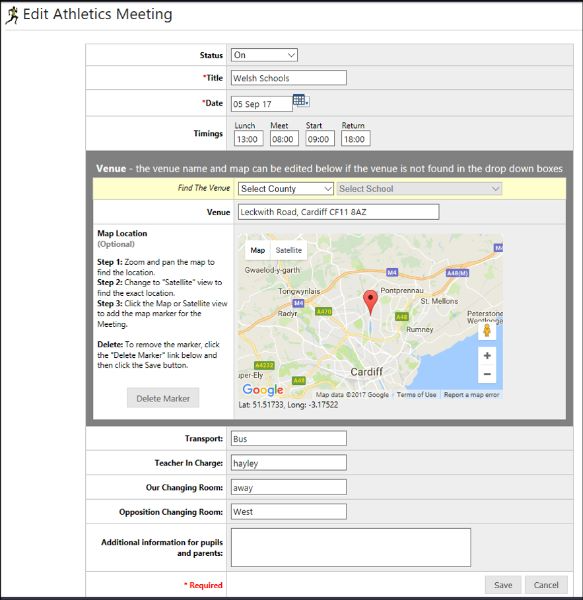
Step 6
Add events to specific Meetings by selecting the + Add Events button.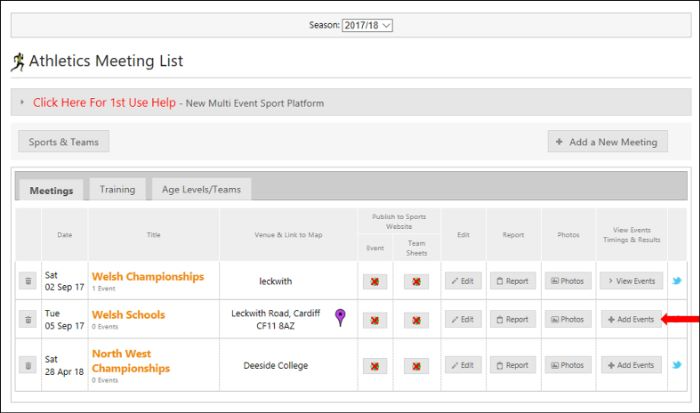
Step 7
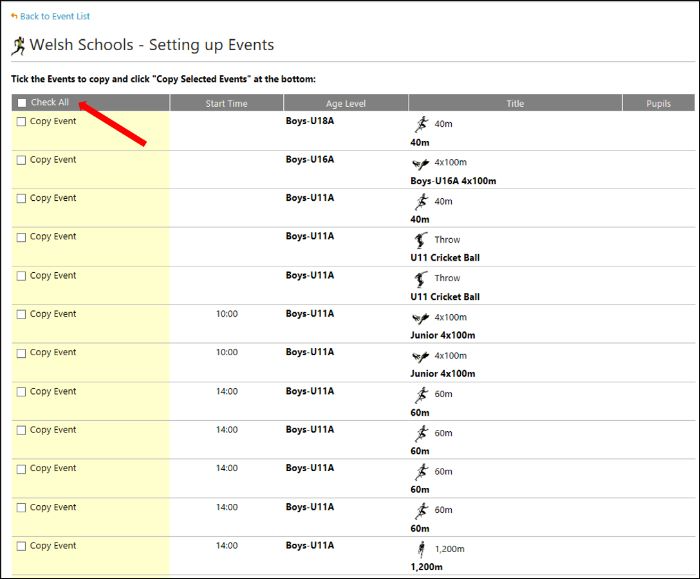
For ease, you can also choose to Copy Events from Another Meeting.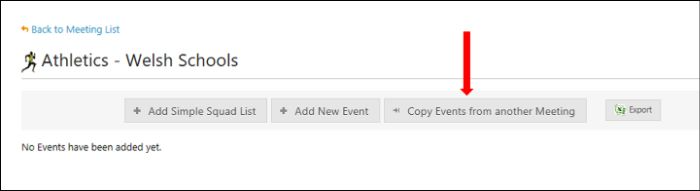
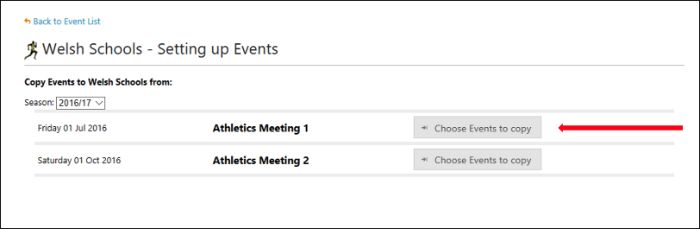
You can then select Check All to add all events from the previous meeting.
Step 7
You have two options for adding pupils to events.
Option 1: Add a Squad List using the + Add Simple Squad List button.
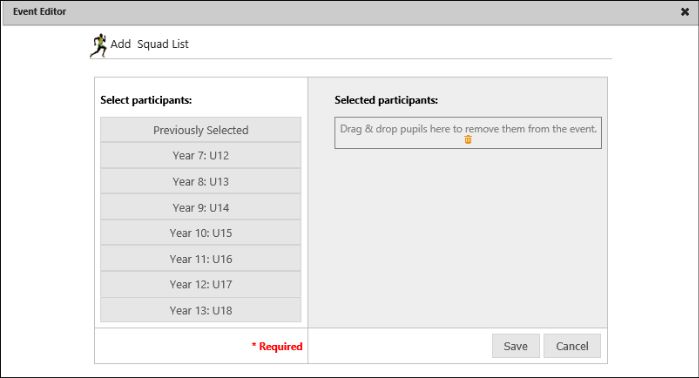
Option 2: Add pupils to individual events once events have been added to the meeting.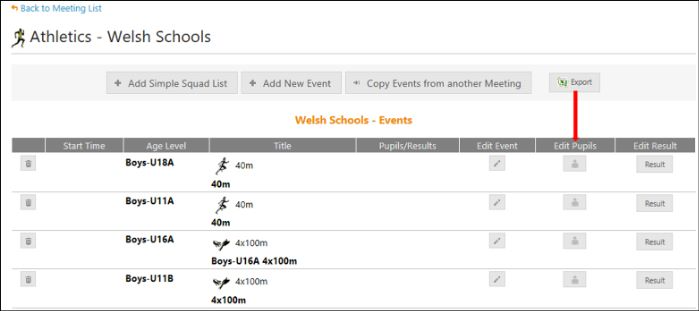
Step 7
To record the results for each event you can upload the time / distance achieved for each event and the place (if a race).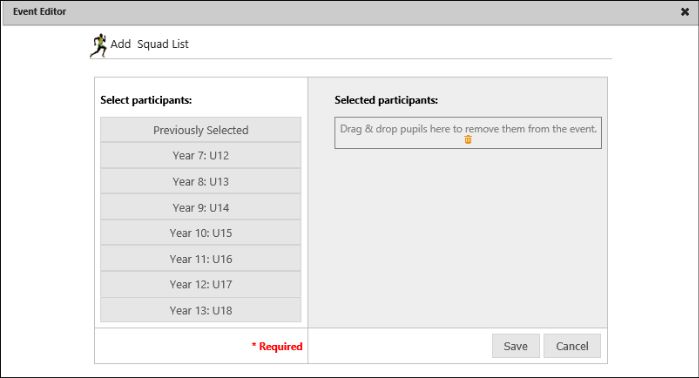
Was this article helpful?
That’s Great!
Thank you for your feedback
Sorry! We couldn't be helpful
Thank you for your feedback
Feedback sent
We appreciate your effort and will try to fix the article