The first step is to setup your "Custom Operations" e.g. Catering / Transport / Match Tea / Laundry etc. Please follow the instructions below.
Step 1
Login to SOCS Administrator and select Custom Operations Setup. 
Step 2 - Adding a custom operation
Click Add a Custom Operation to add your first operation. 
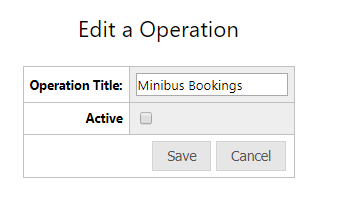
Step 3 - adding a title
Add your chosen operation title and click Save.
Now that the Custom Operation has been added, you can setup the fields within this operation.
Step 4 - adding data fields
Click ‘Edit Fields’, ‘Add a Data Field’ and click ‘Save’.
Your field will now appear under ‘Data Fields’ next to the operation. You will now need to activate your operations.
Step 5 - Activate the custom operation
Click 'Edit' next to the operation and tick the box 'Active'. Please note, operations can only be made active once the data fields have been setup.
- Once you have added all your data fields, you can organise the fields by clicking ‘Edit Fields’ and then drag each field to sort by order.

Step 6
Now that operations and fields have been setup, you will find a new tab in the Sports Programme called ‘Custom Operations’.
Step 7
You can filter by operation and select the date range to view/add the operations for a specific day - see the screenshots below:


You will see all the events with operations added highlighted in green.
Was this article helpful?
That’s Great!
Thank you for your feedback
Sorry! We couldn't be helpful
Thank you for your feedback
Feedback sent
We appreciate your effort and will try to fix the article